
01 / Proofing guide
Set up one proof per deliverable
Open Proofs from the workspace sidebar and create a proof for the item being reviewed, such as a campaign banner set or a brochure layout. Give it a title the whole team would recognize, add a short description of what the review covers and link it to the relevant project. Upload the first file: images, PDFs and video files are accepted.
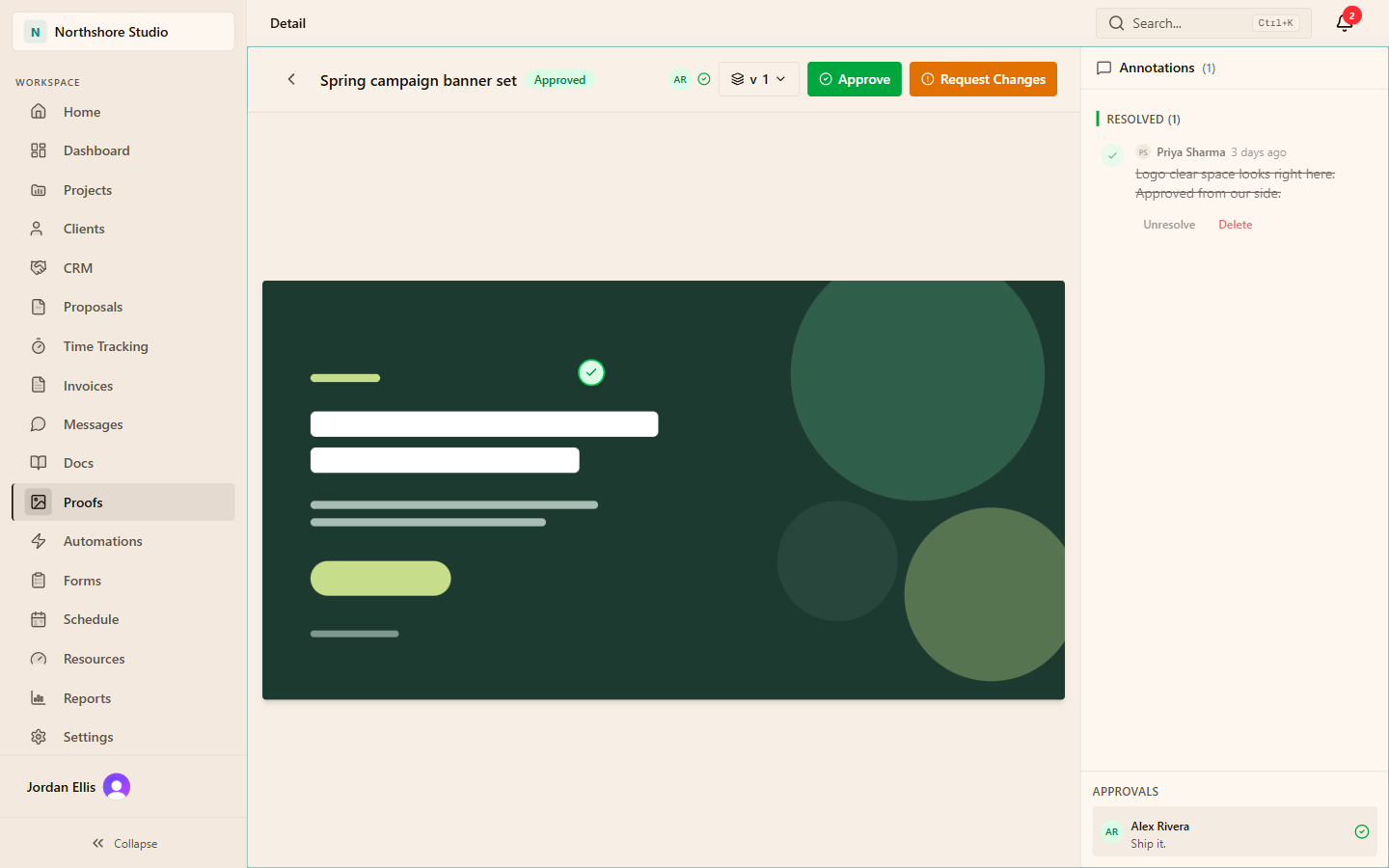
When the designer produces a revision, use Upload new version from the version menu on the same proof. Versions are numbered in order, so reviewers can switch between them and see which file answers which feedback. A separate proof for every revision scatters the history and hides which file was actually approved.
02 / Proofing guide
Match the review method to the file type
Feedback behaves differently depending on the file. Pins are placed on images only. A PDF opens in an embedded viewer inside the proof, and other files, including video, show the file name with an Open file link. Approval decisions work on every version regardless of type, so a PDF or video can still receive a recorded approve or change-request decision with a comment.
| File type | How it is reviewed | Where to put detailed feedback |
|---|---|---|
| Image | Displayed on the canvas with numbered pins | A pin at the exact spot, with replies in the Annotations panel |
| Embedded document viewer | The decision comment, or a task comment naming the page | |
| Video and other files | File name with an Open file link | The decision comment, or a specialist review tool for timecoded notes |
03 / Proofing guide
Run a feedback round with a clear outcome
Agree who reviews, what they are judging and the response date before sharing the proof. Proof annotations and decisions are made by workspace members with permission to write documents, files and proofs, which covers the Member role and above by default. Viewers can look but cannot annotate or approve.
Pin specific feedback
On an image, click the point that needs attention and write the change you want, not only the problem. One pin per issue keeps the list easy to work through.
Discuss in replies
Use replies on a pin for questions and clarifications so the thread stays attached to the spot it refers to.
Resolve as work is done
The designer marks each pin Resolve once it is addressed. Resolved pins move to their own group and can be reopened with Unresolve.
Upload the revision
Add the revised file as a new version of the same proof. Pins and decisions stay with the version they were made on.
Record the decision
Each reviewer chooses Approve or Request Changes on the current version and adds a comment. The Approvals panel lists who decided what.
04 / Proofing guide
Read decisions from the version, not from memory
Each reviewer holds one decision per version. If a reviewer changes their mind, the newer decision replaces the earlier one on that version. Decisions do not carry forward, so version two starts without approvals even if version one was approved with minor notes. That is deliberate: the approved file should be the file that actually ships.
An illustrative round: an art director and an account lead review a banner set. On version one, the art director leaves three pins about logo clear space, contrast and button copy, then records Request Changes. The designer resolves all three pins and uploads version two, and both reviewers record Approve on it. The team now knows which file is approved, by whom, and what changed since the previous round.
05 / Proofing guide
What portal clients can do in a review
Proof pins and proof decisions are internal member actions. Client portal users do not place pins or record proof approvals. Plan client review through the portal features they do have, and record their answer beside the work.
Portal users can see the projects that belong to their client, the tasks marked client visible, the files and documents shared as client visible, and the client-visible messaging channels. They can add comments on client-visible tasks and post in those channels. For a client sign-off, attach the internally approved file to a client-visible task as a client-visible file, state the decision needed and the response date, and ask for a written approval or one consolidated change list in the task comments. The client portal guide covers invitations and visibility in more detail.
- Share the approved version, not a draft that is still in internal review.
- Name the client decision-maker when stakeholders disagree.
- Record who approved, which version and on what date, even when approval arrives by email.
06 / Proofing guide
Avoid the common proofing mistakes
Most review problems come from process rather than tooling. Correct these patterns early.
- Creating a new proof for every revision instead of uploading a new version.
- Leaving pins such as Fix this without describing the change required.
- Treating an unresolved pin as done because the designer believes it was addressed.
- Expecting pins on a PDF or video file. Use the decision comment or a specialist tool.
- Treating an internal approval as client acceptance or as a contractual milestone.
THE PRACTICAL DETAILS
Questions, answered.
Can clients place pins on a proof in the portal?
No. Pins and proof decisions are made by workspace members. For client review, share the approved file on a client-visible task and collect the client's decision in the task comments, which the team can see alongside the work.
Can we annotate a PDF page by page?
Not with pins, which are limited to image files. PDFs open in an embedded viewer. Put page-specific notes in the decision comment or a task comment that names the page, or use a dedicated markup tool for heavy editorial review.
Does Flowboard support frame-accurate video comments?
No. Video files show an Open file link rather than a player with timecoded comments. Use a specialist video review tool for timecoded notes and record the final decision on the proof version so the project keeps the outcome.
What happens to approvals when we upload a new version?
Approvals belong to the version they were recorded on. The new version starts without decisions, so reviewers need to approve it explicitly. Earlier versions keep their pins and decisions for reference.
Can clients approve work with a button in the portal?
The portal shows Approve and Request Changes controls on tasks marked client editable. Approving marks the task done and posts an approval comment with the client's name; requesting changes posts their feedback and moves the task back to in progress. The standard task visibility menu offers Internal and Client visible, so confirm with support@flowboardhq.com that client-editable review is available in your workspace before promising it to a client.