
01 / Operating routine
Prepare the review once
Invite an Owner or Admin, whoever runs delivery or operations, and the account leads. At least one Owner or Admin must attend, because revenue, cost and margin figures are visible only to those roles. Managers see hours, utilization and capacity but not margin columns.
Before the first meeting, confirm that each person has a weekly capacity in resource planning, that active projects have budgets and cost rates, and that each project has a scope-change log. Flowboard has no dedicated change-request record, so keep the log as a project document based on the scope-change request template. Run the four reports below at the start of each review with last week's dates. Avoid a weekly email schedule for this meeting: a saved report keeps the dates it was saved with, so a weekly schedule resends the same period rather than the latest week, and scheduled emails include margin columns for every recipient.
- Capacity vs Actual, grouped by person, for last week.
- Team Utilization for last week.
- Project Profitability for active projects.
- Time & Billing for last week, grouped by project.
02 / Operating routine
Follow a fixed agenda
Keep the order fixed so people arrive with answers. If a segment overruns, park the topic with an owner.
| Minutes | Segment | Open in Flowboard | Decision to leave with |
|---|---|---|---|
| 0 to 10 | Planned versus actual capacity | Resources, then the Capacity vs Actual and Team Utilization reports | Who is overloaded next week and what moves |
| 10 to 20 | Project margin check | Project Profitability report and project budgets | Which projects need a scope, staffing or price conversation |
| 20 to 28 | Unbilled time | Invoices, generate invoice preview per hourly project | What gets invoiced this week and what gets corrected |
| 28 to 36 | Open scope changes | Each project's scope-change log document | Which changes need a client decision and by when |
| 36 to 43 | Client updates | Prepare Client Update on each active project | Who sends which update and when |
| 43 to 45 | Recap | The meeting notes document | Owners and dates read back |
03 / Operating routine
Check capacity, then margin
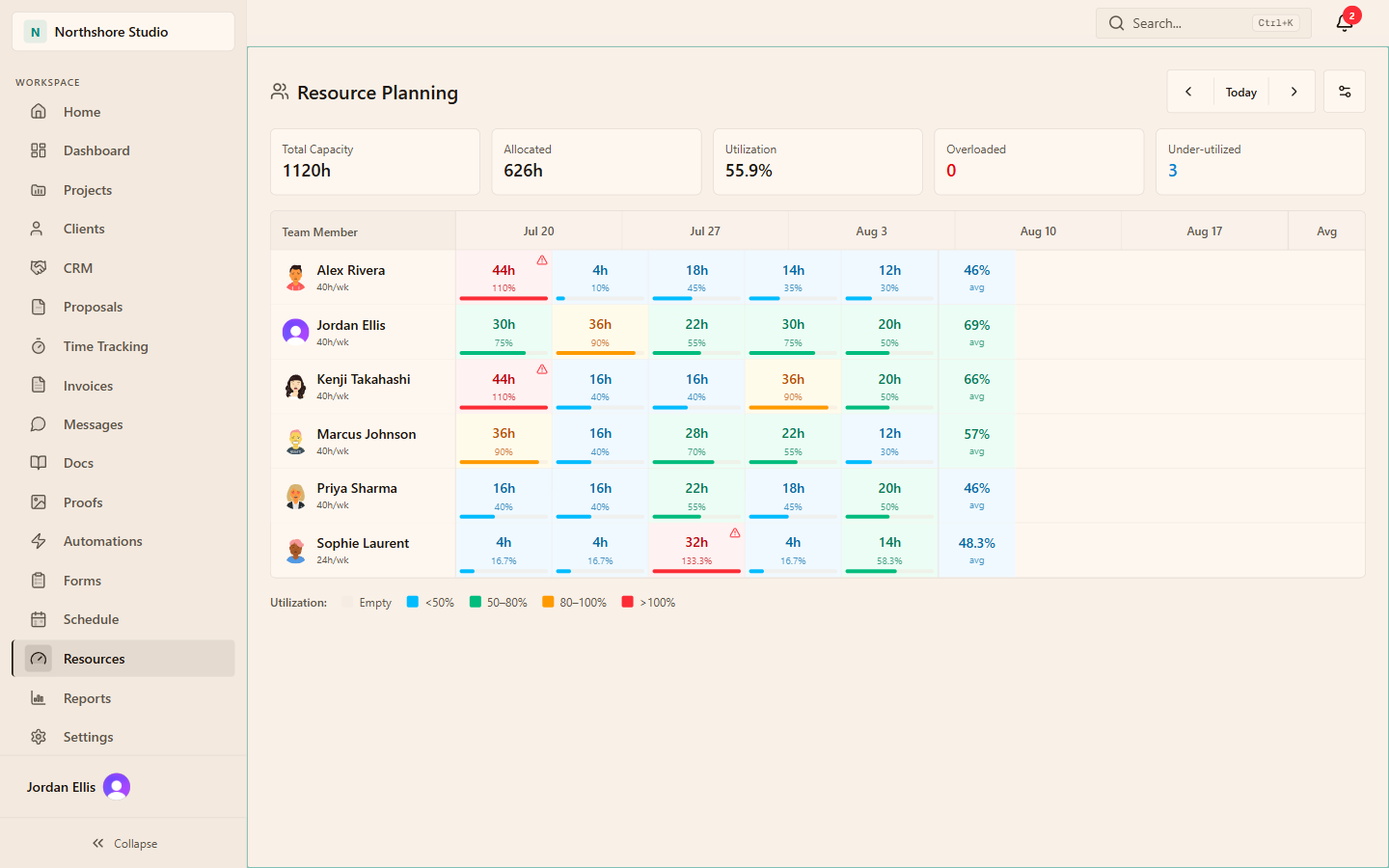
Start with Resources. The summary shows total capacity, allocated hours, utilization and how many people are overloaded or under-utilized, and each person's weekly cells show where allocations pass capacity. Look two to four weeks ahead, not only at the current week. Then compare last week's plan with reality in the Capacity vs Actual report, which lists allocated hours, actual hours, the variance and an accuracy percentage for each person. Team Utilization shows billable hours against available hours. Planned allocation and billable utilization answer different questions, so do not treat a full plan as proof of billable work.
Next, open Project Profitability. It shows hours, revenue, costs, margin and profit per project. For fixed-fee and retainer projects, revenue is the agreed fee while costs are only what has been logged so far, so a project halfway through can look more profitable than it will finish. Ask each lead for the hours still needed and work out the likely outcome.
04 / Operating routine
An illustrative fixed-fee margin check
Assume a fixed fee of $18,000, a budget of 150 hours, a loaded cost rate of $55 per hour and $900 of direct expenses. The team has logged 110 hours and estimates 60 more. All figures are illustrative assumptions, not a customer result. To date, recorded cost is $6,950 and the margin looks like 61%. Finishing at 170 hours costs $10,250, leaving $7,750 of direct profit, a 43% margin against the planned 49%. The 20 extra hours cost $1,100. Decide now whether to reduce remaining scope, move work to a lower-cost person or raise a change request. The project profit calculator lets you test other assumptions.
| View | Hours | Direct cost | Direct profit | Margin |
|---|---|---|---|---|
| Planned at budget | 150 | $9,150 | $8,850 | 49% |
| Recorded to date | 110 | $6,950 | $11,050 | 61% |
| Likely finish | 170 | $10,250 | $7,750 | 43% |
05 / Operating routine
Clear unbilled time and open scope changes
For each hourly project, start an invoice from Invoices, choose the project and use Preview. The preview lists every finished, billable time entry on that project that has not been invoiced yet, from any date, and nothing is saved until you create the invoice. Decide whether to invoice now, fix an entry that is marked billable in error or hold the time until an agreed billing date. Once entries are on an invoice they are locked against edits and cannot be billed twice, so correct mistakes before generating.
Then walk each scope-change log. Sort items into three groups: waiting for a client decision, approved but not yet reflected in the budget and allocations, and work already started without approval. The third group is the expensive one. Give each item an owner who will send the request or update the plan, and set a response date.
06 / Operating routine
Prepare client updates and close the loop
On each active project, open Prepare Client Update. It gathers recent client-visible tasks, comments and files, lets you write a summary and offers Copy to Clipboard or a text download. It does not send anything, so the account lead sends it through the usual channel. Make Visible adds an internal task to the update by changing that task to client visible, so only use it on tasks the client should see. The weekly client update template gives a structure for the message.
End by reading back each decision, owner and date into a meeting notes document, and open next week's review with those items.
THE PRACTICAL DETAILS
Questions, answered.
Can a Manager run this review alone?
Managers can run the capacity, unbilled time, scope and client update segments. The margin segment needs an Owner or Admin, because revenue, cost and margin figures are limited to those roles by default. An Owner or Admin can grant View financials to a specific person through a role preset.
Can Flowboard email these reports before the meeting?
Not usefully for a weekly review. An Owner or Admin can schedule a saved report by email as CSV, but the saved report keeps its original dates, so each weekly send repeats the same period. Scheduled emails also include revenue, cost and margin columns for every recipient. Run the reports with last week's dates at the start of the meeting instead.
Does Flowboard forecast where a project will finish?
No. Reports show recorded hours, costs and the configured fee. The likely finish comes from your team's estimate of remaining hours, which is why the margin segment asks each lead for that number.
Why does the invoice preview show time from weeks ago?
The preview includes every finished, billable, uninvoiced entry on the project, whatever its date. That is useful for finding time that slipped through, but check the agreement before billing older work.
Where should scope changes live?
Keep a scope-change log as a document on each project, based on the scope-change request template. After the client approves a change, update the project budget and allocations in the same week so reports reflect the new plan.