
01 / Capacity guide
Know which number you are looking at
Four figures sound alike and answer different questions. Mixing them is the most common reason capacity conversations go in circles, so agree the vocabulary with project leads before the first review.
| Measure | Where it comes from | What it answers |
|---|---|---|
| Capacity | Capacity rules, or 40 hours a week when none apply | How many hours this person can plan for this week |
| Allocation | Hours you enter per person, project and week | Where we intend those hours to go |
| Actual | Finished time entries, billable and non-billable | Where the hours really went |
| Billable utilization | Billable hours against available hours in the Team Utilization report | How much logged time was chargeable |
02 / Capacity guide
Set capacity rules first
Open Resources and use the capacity rules button to open Team Capacity Rules. Add a rule for a member with their hours per week and an effective-from date. Without a rule, a member is planned at 40 hours a week. When several rules have started, the most recent one applies. Managing rules and allocations needs capacity permission, which owners, admins and managers hold by default.
Weeks start on Monday, and a rule applies from the first week whose Monday falls on or after its start date. The start date defaults to today, so date a rule on a Monday if it should cover the current week. For a week of leave, add a 0 hour rule from that Monday and a rule restoring normal hours from the following Monday. A week with zero capacity shows 0% utilization even if hours are allocated, so read the hours as well as the colour.
03 / Capacity guide
Allocate hours by person, project and week
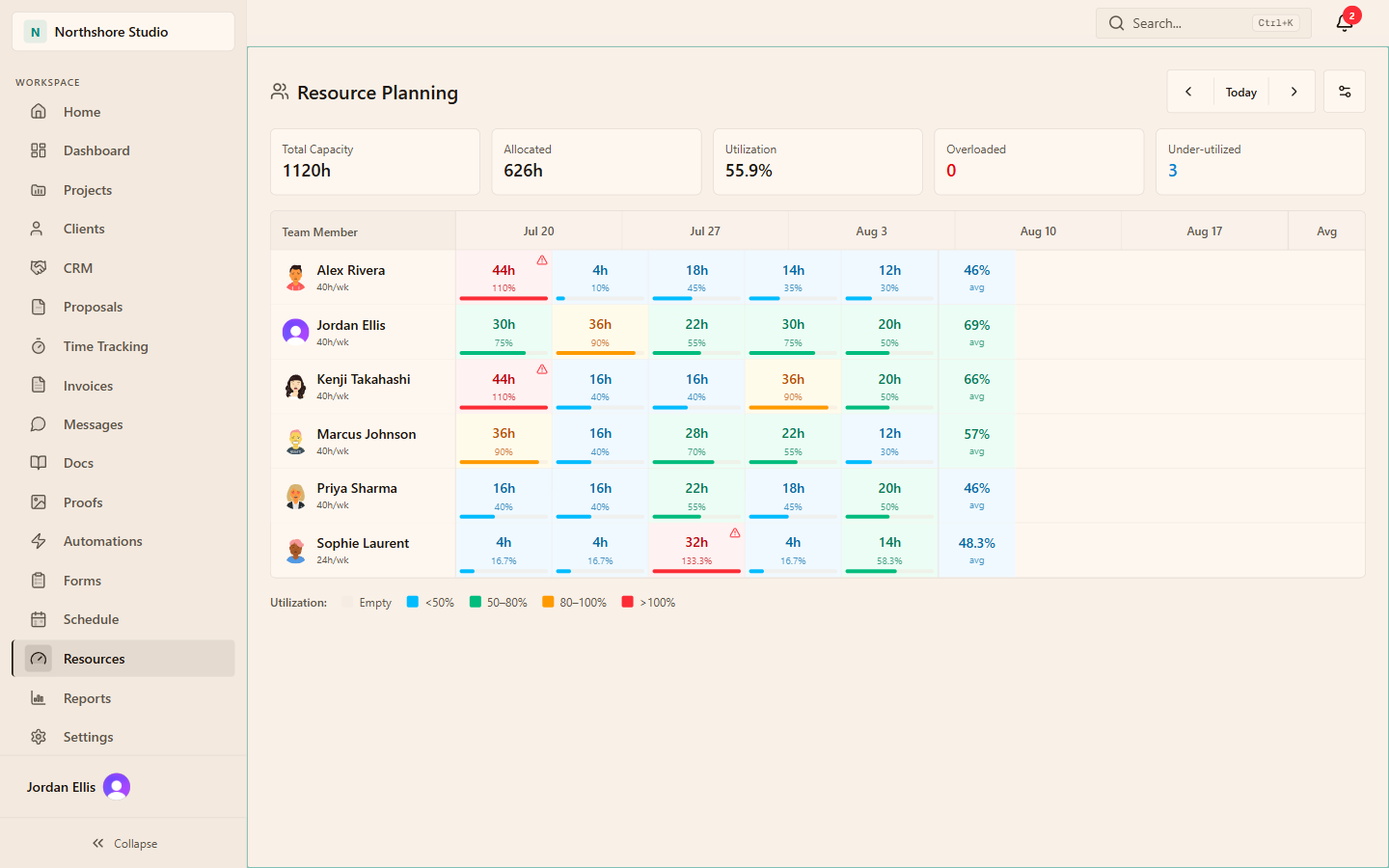
The Resource Planning heatmap shows each team member against four weeks at a time, with previous and next controls and a team filter. Select a cell to allocate hours for that person and week: choose a project and enter hours in half-hour steps. Saving sets the hours for that person, project and week. Entering 10 again replaces the earlier figure rather than adding to it, and entering 0 sets that project's hours for the week to zero.
Cells are coloured by allocation against capacity: under 50%, 50 to 80%, 80 to 100% and over 100%. The summary counts a member as Overloaded when their average across the visible weeks is over 100% and Under-utilized when it is under 50%. Allocations are entered deliberately. Assigning a task or setting an estimate does not reserve anyone's week.
04 / Capacity guide
An illustrative planning week
Illustrative example: a designer works four days, so their rule is 32 hours a week. The lead allocates 20 hours to a website project, 10 to a brand refresh and 6 to internal work. The assumptions below show how the figures relate; they are not a customer result.
Allocation is 36 hours against 32, or 112.5%, and the cell turns red. The lead moves 4 brand hours to the next week, which brings the week to exactly 100%. At the end of the week the designer has logged 30 hours. Capacity vs Actual shows 32 allocated, 30 actual, a variance of minus 2 hours and accuracy of 93.75%. The conversation is about the 2 hours, not about blame.
| Figure | Illustrative value | How it is worked out |
|---|---|---|
| Capacity | 32 hours | Rule for a four-day week |
| First allocation | 36 hours, 112.5% | 20 + 10 + 6, divided by 32 |
| Revised allocation | 32 hours, 100% | 4 brand hours moved to next week |
| Actual | 30 hours | All finished time entries that week |
| Variance and accuracy | Minus 2 hours, 93.75% | 30 minus 32, and 30 divided by 32 |
05 / Capacity guide
Compare the plan with what happened
In Reports, run Capacity vs Actual grouped by person or by project. It shows Allocated, Actual, Variance and Accuracy %. Actual includes every finished time entry, billable or not. Accuracy is actual divided by allocated, so above 100% means more time than planned, and a row with logged time but no allocation shows 0%. Allocations count when their week's Monday falls inside the date range, so use whole Monday to Sunday ranges such as Last Week to keep both sides aligned.
The Team Utilization report is a different lens. It divides billable hours by available hours, and available hours come from each member's working hours and working days settings rather than capacity rules. A heatmap at 90% and a billable utilization of 60% can both be true. Keep the two settings consistent, and say which measure you mean when you share a number.
06 / Capacity guide
Run a weekly capacity routine
A short, regular review keeps the plan close enough to reality to be useful.
Before the week
Update rules for leave and part-time changes, then check next week's red and empty cells and resolve them with the project leads.
Midweek
Adjust allocations when priorities change instead of waiting for Friday. The plan is useful only while it reflects current intent.
End of the week
Ask for time to be logged, then run Capacity vs Actual for Last Week and note the largest variances.
Monthly
Look for repeated patterns, such as one project always running over plan, and change the estimate, the scope or the staffing.
THE PRACTICAL DETAILS
Questions, answered.
Does assigning a task allocate someone's capacity?
No. Allocations are entered in Resources per person, project and week. Tasks and estimates guide the plan, but they do not reserve hours on their own.
What capacity does a person have without a rule?
40 hours a week. Add a rule for anyone who works part time, has regular non-project duties or is on leave, so their cells show a realistic percentage.
Why does a week show 0% when hours are allocated?
The applicable rule sets capacity to 0 for that week, often for leave, so no percentage can be calculated. Check the allocated hours in the cell and move them if needed.
Is accuracy % a performance score?
No. It compares logged time with the plan. A low figure can mean missing time entries, a changed priority or an optimistic plan. Ask what happened before drawing a conclusion.
Who can see and change capacity?
By default, owners, admins and managers can view the heatmap and manage rules and allocations. Other roles need those permissions granted.